
Replay (Operator UI)
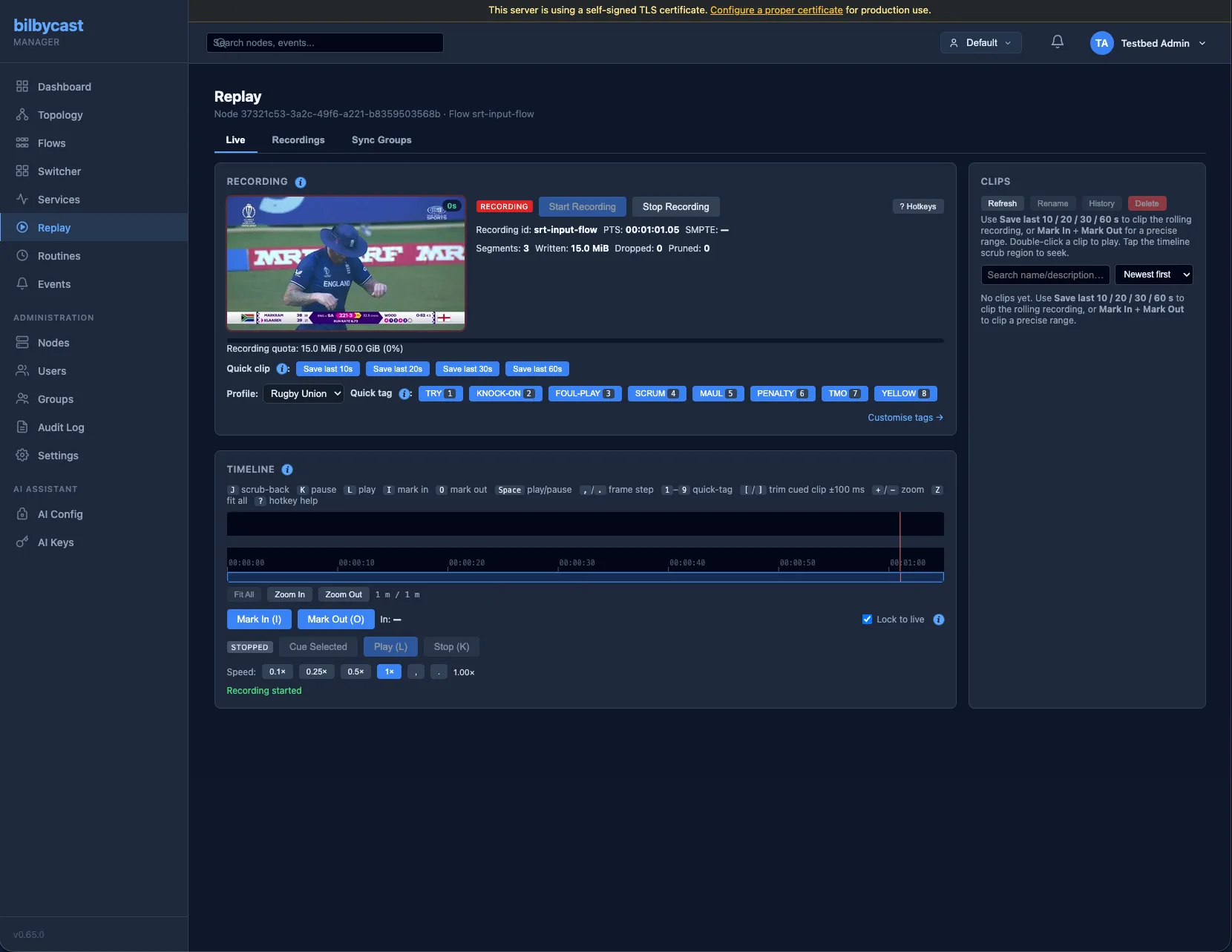
The manager’s /replay page is the operator surface on top of the edge replay server. It gives you a JKL-style scrub timeline, a clip library, sport-tagging profiles, and a one-click push-to-air. This page is for the people in the chair during a live event — what each button does, every keyboard shortcut, and how the custom tag profiles work.
The page has three tabs — Live (the JKL scrub workspace, which is most of this page), Recordings, and Sync Groups. The active tab is carried in the URL, so /replay?node=…&flow=…&tab=recordings and /replay?tab=sync-groups are both linkable.
Prerequisites
Section titled “Prerequisites”- The edge node must advertise the
replaycapability — every release with the default feature set does. - Slow motion (the 0.1× / 0.25× / 0.5× / 1× transport presets) and the dedicated frame-step command additionally need the edge to advertise
replay-v2. Without it the speed row is hidden outright and,/.fall back to a 33 ms seek. - Filmstrip thumbnails on the scrub strip are not gated on a capability bit — the manager just asks. An edge that doesn’t know the command answers
unknown_action, which the manager turns into an empty strip rather than an error toast. - The flow must have
recording.enabled = true. Add it on the flow create / edit modal (the Recording sub-block). - Operators need at least the Operator role on the group that owns the node + flow.
To filter /admin/nodes to just the replay-capable edges, append ?capability=replay.
Opening the page
Section titled “Opening the page”The /replay page is the per-flow scrub view:
/replay?node=<node-id>&flow=<flow-id>Quickest way in: click any flow card with a ● REC (Recording) or ● PRE-ROLL chip on the dashboard — the chip is a deep-link to /replay.
The scrub timeline
Section titled “The scrub timeline”The timeline shows the rolling buffer for the currently-recording flow. The vertical play-head sits on the cursor; live frames stream from the right.
| Action | Mouse | Keyboard |
|---|---|---|
| Pause | click play-head | K |
| Play forward 1× | — | L |
| Toggle play / pause | — | Space |
| Reverse scrub | drag left | J |
| Frame step back | — | , |
| Frame step forward | — | . |
| Mark in | click marker | I |
| Mark out | click marker | O |
| Lock to live | toggle the Lock-to-live checkbox | — |
| Zoom in at the play-head | — | + / = |
| Zoom out at the play-head | — | - / _ |
| Fit the whole buffer | — | Z |
| Show the hotkey overlay | — | ? |
Lock to live keeps the play-head on the latest frame as new content arrives — useful when you want to stay in step with the broadcast and only break off to clip something on demand.
At 900 px of viewport width or narrower a touch transport bar appears below the timeline, so the same transport is reachable on a tablet with no keyboard.
Quick-clip the last N seconds
Section titled “Quick-clip the last N seconds”Below the timeline are four single-button quick-clip pills — 10s, 20s, 30s, 60s. Each one immediately creates a clip ending at the current play-head position with the corresponding lookback. Useful for the moment-of-action workflow where there’s no time to mark in/out manually.
Each button uses the active tag profile’s default tag (see below).
Bracket-trim — [ and ]
Section titled “Bracket-trim — [ and ]”Once a clip exists, select it in the library and press Cue Selected — the trim keys act on the cued clip, not on whichever row is highlighted. Double-clicking a row plays it and leaves the trim keys inert. Then use:
[to nudge the in-point later by 100 ms.]to nudge the out-point earlier by 100 ms.
Both keys trim the clip inward in 100 ms steps. Trims fire update_clip against the edge — SMPTE timecode strings are cleared on PTS trim because the index doesn’t store them.
Cueing runs against whichever input is on air, so the flow’s active input has to be a replay input — a replay member sitting on standby doesn’t count. Without one the cue is refused with replay_no_playback_input, nothing is cued, and [ / ] answer “Cue a clip first to trim it”.
The clip library
Section titled “The clip library”The right-hand panel lists every clip in the current flow’s recording. It’s group-scoped — operators only see clips from flows their group owns.
| Action | How |
|---|---|
| Sort by | header dropdown — Newest, Oldest, Name, Duration |
| Search | the search box; case-insensitive substring across name + description + tags |
| Filter by tag | click a tag pill at the top of the panel; clicks toggle inclusion / exclusion |
| Rename / re-describe | row hover → pencil icon |
| Tag | row hover → tag icon, or use the active profile’s hotkeys |
| Trim | select row → Cue Selected, then [ / ] |
| Delete | row hover → trash, then confirm |
Push-to-air
Section titled “Push-to-air”The Push to air button on each clip row opens a flow-selector modal. Pick:
- Target node + flow — any flow in the same group that the operator can edit.
- Replace mode —
Replace input(swap the live input out, replace with this clip) orAdd as new input(add the clip alongside, useful when running a multi-input flow).
The manager creates a replay-type input pointing at the clip on the source edge, attaches it to the target flow, and sets it active. From the operator’s POV: one click and the clip is on PGM. Returning to live is the same flow in reverse — a Return to live button appears once a replay input is active.
Tag profiles + sport presets
Section titled “Tag profiles + sport presets”Tagging clips with sport-specific markers (GOAL, FOUL, OFFSIDE, …) lets you find them later by tag-pill filter. Tag profiles let each group define its own taxonomy; sport presets seed those profiles with sensible defaults.
Tag profiles
Section titled “Tag profiles”A tag profile is a list of up to 9 tags, each [A-Z0-9_-]{1,32}. Each group can have up to 20 profiles, stored on groups.replay_tag_profiles as JSON:
[ { "id": "soccer", "name": "Soccer", "tags": ["GOAL", "FOUL", "OFFSIDE", "SAVE", "YELLOW", "RED", "VAR-CHECK", "SUB", "OG"] }, { "id": "studio", "name": "Studio default", "tags": ["INTERVIEW", "CLIP", "FAIL", "GAG"] }]The group’s default_replay_tag_profile_id selects which profile applies when an operator hasn’t picked one yet.
Per-operator selection
Section titled “Per-operator selection”Each operator picks an active profile via the dropdown at the top of the /replay page; the choice is persisted into their own ui_preferences.replay_tag_profile_id (a JSON object keyed by group_id, so operators in multiple groups keep distinct preferences).
Hotkeys 1-9
Section titled “Hotkeys 1-9”Number-row keys 1-9 apply the currently-active profile’s tag at index 0-8 to the selected clip (or the clip created by the next quick-clip press). Switching profiles instantly rebinds the hotkeys — no extra step.
For Soccer, 1 = GOAL, 2 = FOUL, 3 = OFFSIDE, …. For Studio default, 1 = INTERVIEW, 2 = CLIP, ….
Sport-preset catalogue
Section titled “Sport-preset catalogue”The system ships a built-in catalogue at static/js/shared/replay_tag_presets.js covering: Soccer, Rugby Union, Rugby League, NFL, AFL, Cricket, Tennis, Basketball, Ice Hockey, Field Hockey, Volleyball, Badminton, Baseball, Netball, Handball, Combat Sports, Athletics, and a fall-through Generic profile. Group admins can copy any preset into the group as a new profile on the Replay quick-tags page (/admin/replay-tags), using the + New profile from preset… option at the head of the profile dropdown, then edit it freely. Two ways in: group admins and SuperAdmins get a Customise tags → link at the right of the quick-tag bar on /replay, and Admin → Groups → <group> → Replay quick-tags → Configure quick-tags → links to the same page — the Groups form itself shows only a one-line summary, not an editor.
The system Soccer preset is the NULL fallback when neither the group nor the operator has selected a profile — clicks just work.
Recording / Pre-roll / Idle status
Section titled “Recording / Pre-roll / Idle status”The flow card on the dashboard shows one of three chips:
● REC(red dot) — the writer is actively recording.recording_status.mode = "armed".● PRE-ROLL(amber dot) — the writer is rolling under thepre_buffer_secondsretention window, ready for an operator Start.recording_status.mode = "pre_buffer".- No chip — the writer is idle.
recording_status.mode = "idle".
Older edges (Phase 1.0) only report a boolean armed — the manager falls back to a two-state Recording / Idle chip in that case.
Recordings
Section titled “Recordings”The Recordings tab is the disk-side view: every on-disk recording across the replay-capable nodes you can see, grouped one section per node. Open a row to list its clips.
The difference from the Live tab is what it can reach. The Live tab works against the flow that is recording now; the Recordings tab lists recordings whose flow no longer has recording armed, and recordings whose flow has been deleted entirely — tick Orphans only to see just those. That is the tab to use when you need to get a clip off a node after the event has finished, or to reclaim disk.
Per row you can:
- Export — the whole recording, or one clip, as MPEG-TS.
- Download a clip directly.
- Delete a recording. Select several and the bulk bar at the bottom shows how many you have picked and how many bytes they hold before you commit.
There is a search box that matches on recording id, flow and node.
Sync Groups (multi-cam)
Section titled “Sync Groups (multi-cam)”A sync group is a named set of (node, flow) members — typically one main and several iso cameras — that record and mark together. Each edge still records its own flow independently; the manager is what makes one operator action land on all of them at once.
- Start / Stop recording fan to every member in parallel. Each member gets a 10-second budget to acknowledge; the result panel reports per member, so one node that has gone quiet is named rather than silently skipped, and the rest still run.
- Mark in / Mark out fan the same way and produce one synchronised clip set instead of N unrelated clips.
- Play fires every member against a shared future start anchor — roughly 250 ms ahead of now — rather than telling each one “start now” as its command arrives. That is what keeps the members within about a frame of each other regardless of how much the WebSocket round-trip to each node varies, including across manager instances in an HA pair.
A sync group is tenant-owned, like a switcher preset: it belongs to one group and is only visible to that group’s members. Creating or editing one requires membership of the owning group plus Operate on every member node — authority over one camera is not authority over the set.
The old /sync-groups URL still works; it redirects to /replay?tab=sync-groups.
Where to read next
Section titled “Where to read next”- Edge replay — the on-disk format, recording configuration, error catalogue.
- Switcher — the live PGM/PVW director console. Replay clips can be loaded onto PVW for same-style takes.
- Routines — clips can be pushed to air on a cron schedule via the
play_clipaction type. - Multi-tenant Groups — clip libraries are group-scoped.